
Scheduling a Meeting
Is exactly what it says on the tin. You pick a date and time, and Jugo does the rest. Once you’ve chosen your slot, the meeting will pop up on your home screen, ready and waiting.
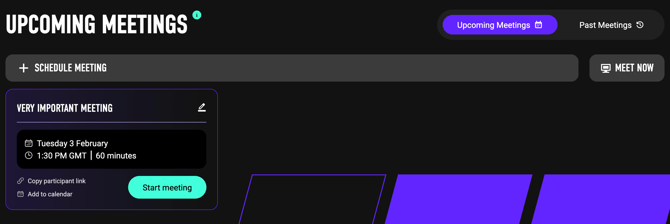
To pop the meeting into your calendar, just click Add to Calendar. Easy! From there, you can connect Google Calendar or Outlook. Jugo will then open a new tab with a pre-filled calendar event.
Once it’s in your calendar, you will need to add the participants - we can't automate everything.
You can also copy the participant link straight from the homepage and send it however you like.
Meet Now
This is the “no fuss, let’s go” option. Just hit the button on the home screen, and you’ll be dropped straight into a meeting.
Need to bring people along? Once you’re in the call, tap the Add Participants button at the bottom of the screen (yep, while you’re already live).
Upcoming and past meetings
On the right-hand side of your screen - just above Meet Now - you’ll spot the Upcoming and Past meetings tabs.
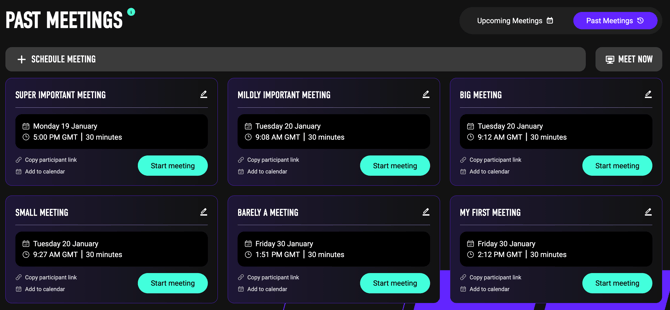
By default, you’ll see all your upcoming meetings on the home screen (like in the screenshot above). Want to take a trip down memory lane? Just toggle over to Past meetings, and you’ll get a list of everything you’ve hosted in Jugo.
Editing a meeting
Want to tweak a meeting? Easy. Just click the little pencil icon in the top-right of the meeting tile you want to edit.
From there, you can change the date, time, and duration, and if the meeting’s been cancelled (or you’ve changed your mind), toss it in the bin / trash.